Appointment Scheduling Update

The appointment module has been updated to accept appointment times of variable lengths.

Color code your appointment types for easy identification at a glance.

Add/remove as many columns in the appointment schedule as you wish simply and easily.

Team that with Automatic Text and Email Reminders to ensure your patients always remember their appointments.
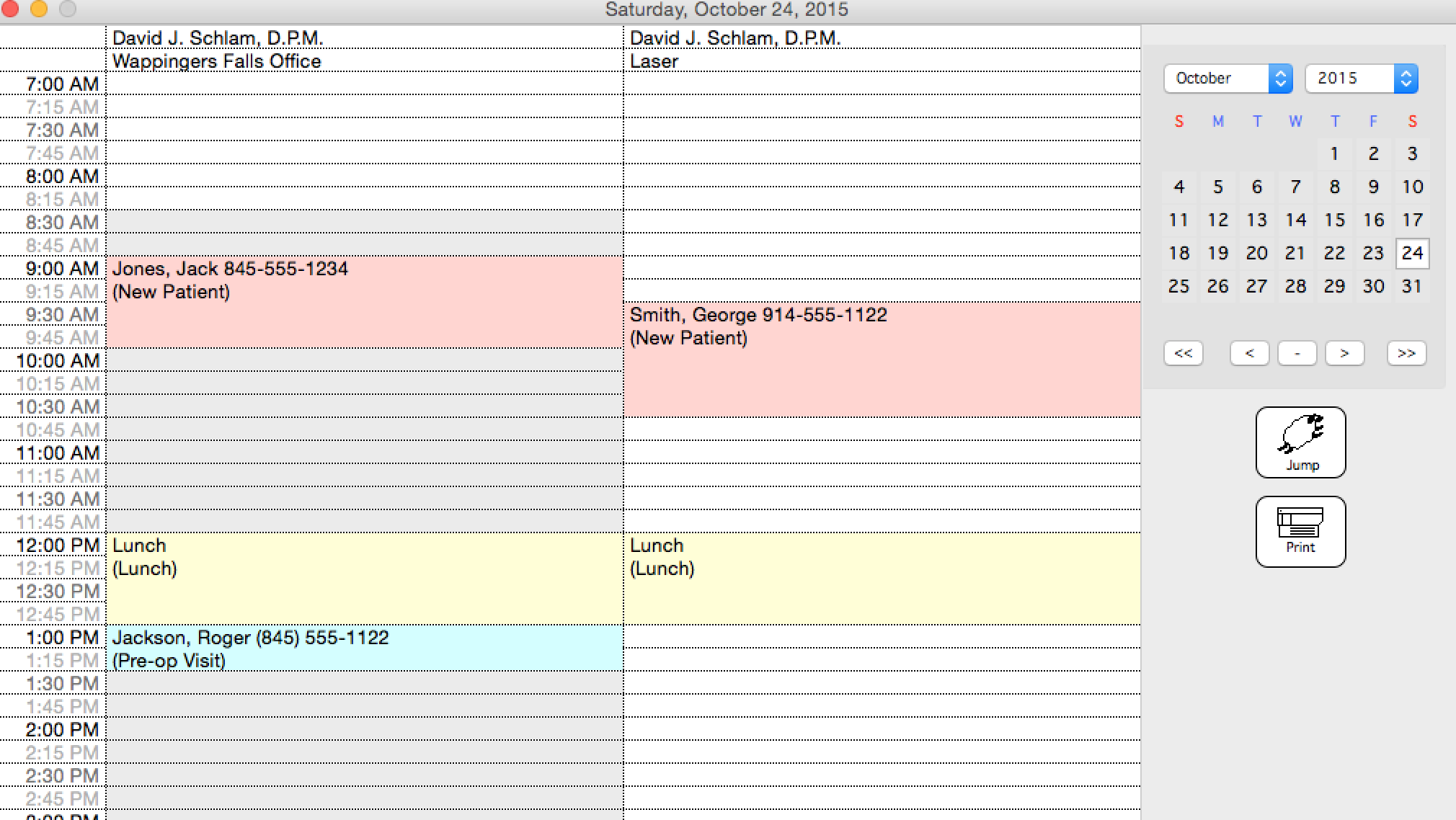
Appointment Schedule
Sample Appointment Schedule

Set the appointment length easily when scheduling the appointment, by choosing a length in the menu just to the right of the appointment time.
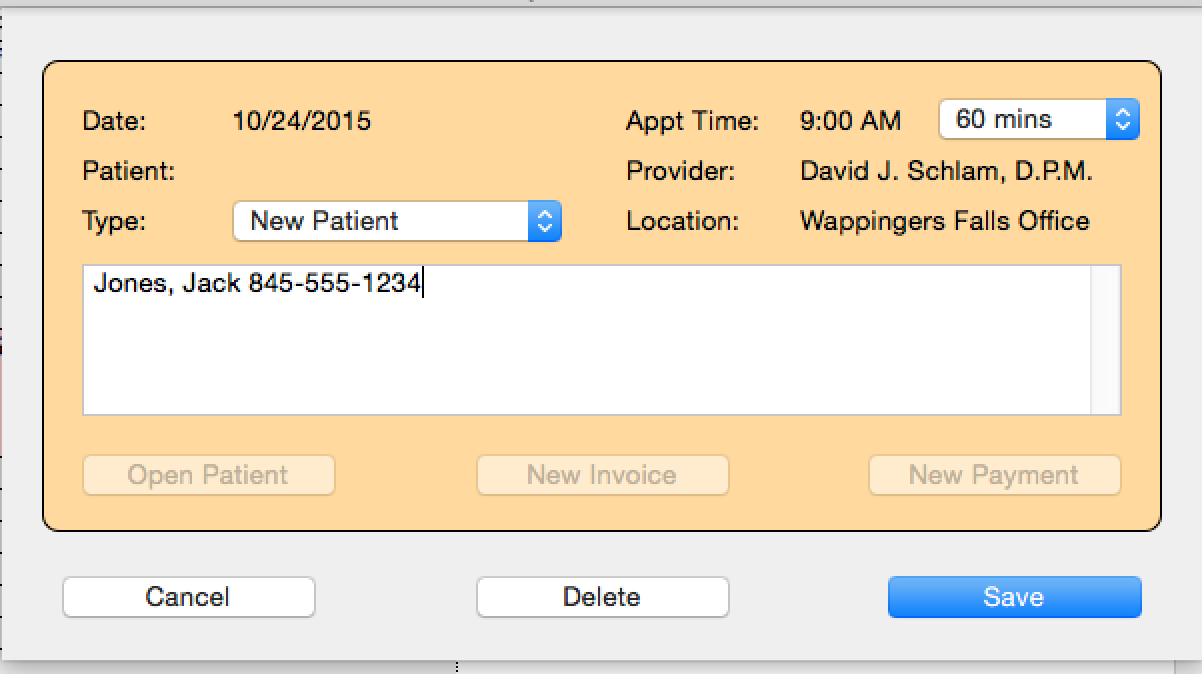
Scheduling Window
Appointment lengths set using an easy pop-up menu


2 thoughts on “Appointment Scheduling Update”

  1. Ann from Eastern Maine Podiatry, PA

    This looks helpful. How does one do the color coding? I see the menu for setting the appointment length but don’t know how to color code. Please advise.

    1. Each appointment has an appointment type – such as: New Patient, or Follow-up.

      Each appointment type can be assigned a color.

      Go to Lists > Appointment Types and choose a color for each appointment type. The appointment book will then use the colors that you have chosen.

Comments are closed.

Scroll to Top